Month End Offer : Get 30% OFF + $999 Study Material FREE - SCHEDULE CALL
A database engine (or storage engine) is the underlying software component that a database management system (DBMS) uses to create, read, update, and delete (CRUD) data from a database. A database engine is an integral part of any application. But there has to be a way for database professionals to manage the services running in the background. They can check out the performances of the different database services and take necessary actions if required. Also, there has to be a place from where connections between servers and different clients can be managed. This is where SQL Server Native Client tool comes into play. Over the next few paragraphs, we will learn about SQL Server Native Client. We would learn about its use, advantage, and disadvantages. We would also learn to install and configure SQL Server Native clients on a machine.
SQL Server Native Client is a stand-alone data access application programming interface (API) used for OLE DB, and ODBC introduced in SQL Server 2005 (9. x). SQL Server Native Client combines the SQL OLE DB provider and the SQL ODBC driver into one native dynamic-link library (DLL). It also provides new functionality above and beyond that supplied by the Windows Data Access Components (Windows DAC, formerly Microsoft Data Access Components, or MDAC). SQL Server Native Client can be used to create new applications or enhance existing applications that need to take advantage of features introduced in SQL Server 2005 (9. x), such as multiple active result sets (MARS), user-defined data types (UDT), query notifications, snapshot isolation, and XML data type support.
Microsoft SQL Native Client should be used to create new applications or enhance existing applications that want to take advantage of new SQL Server 2019 features, such as database mirroring, multiple active result sets (MARS), query notifications, snapshot isolation, and XML data type support.
Following are the steps to install MS SQL Native Client:
Step 1: Open the SQL Server installation center. In which the installation of SQL client is similar to unboxing, but using setup.exe instead. Most of the arrangement is the same as in 2016:

Step 2: When Setup.exe is launched, select the Installation tab from the left-hand menu.

Step 3: Setup.exe’s greater features

Step 4: Select your preferred edition here, ex: Developer.

Step 5: Developer Edition continues to call home, and you can’t turn it off.

Step 6: Feature selection here. Let’s accept most of the engine extras.
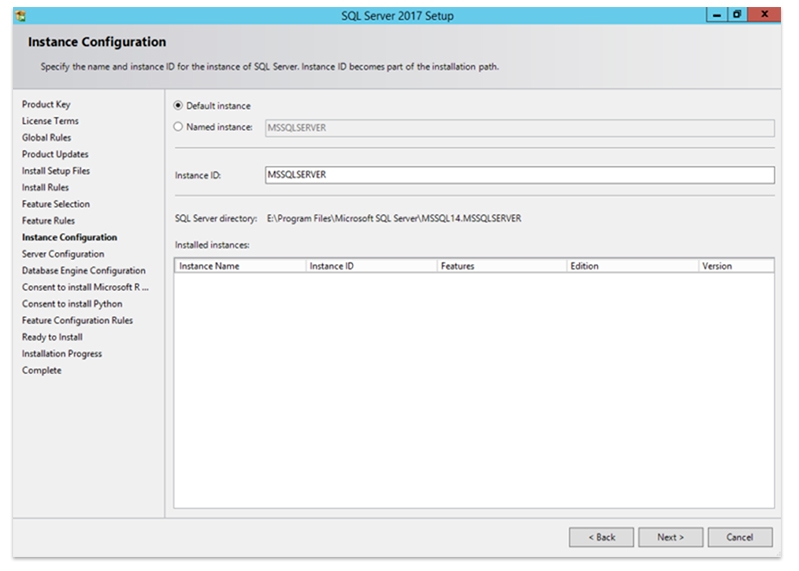
Step 7: Choosing a name for your instance.
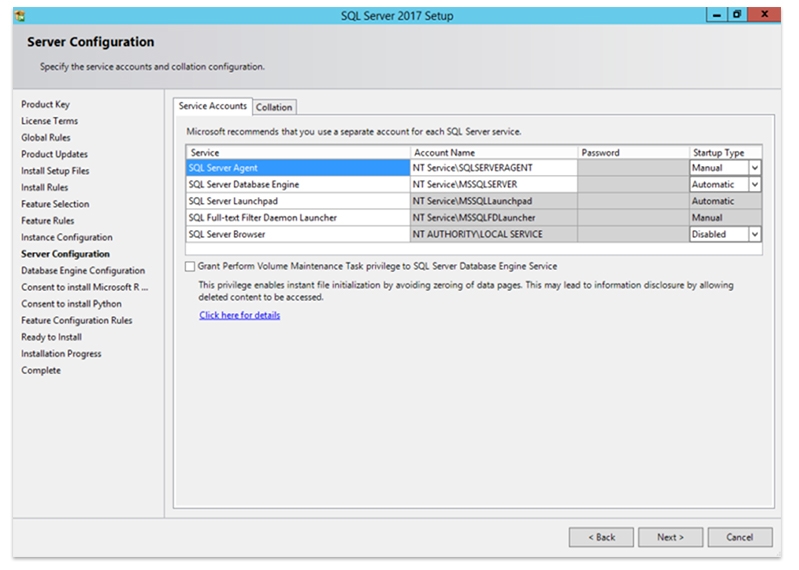
Step 8: Instant File Initialization isn’t checked by default when configuring service accounts. So select Windows authentication mode.
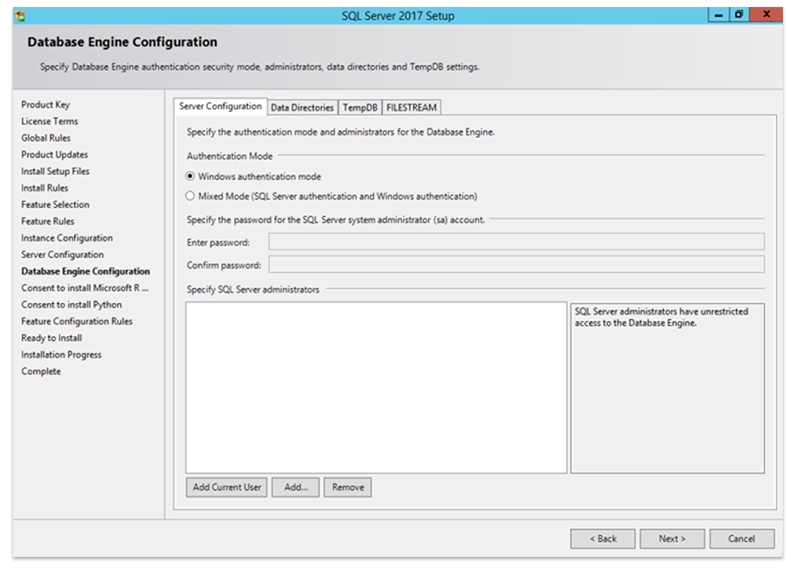
Step 9: Select your sysadmins carefully.
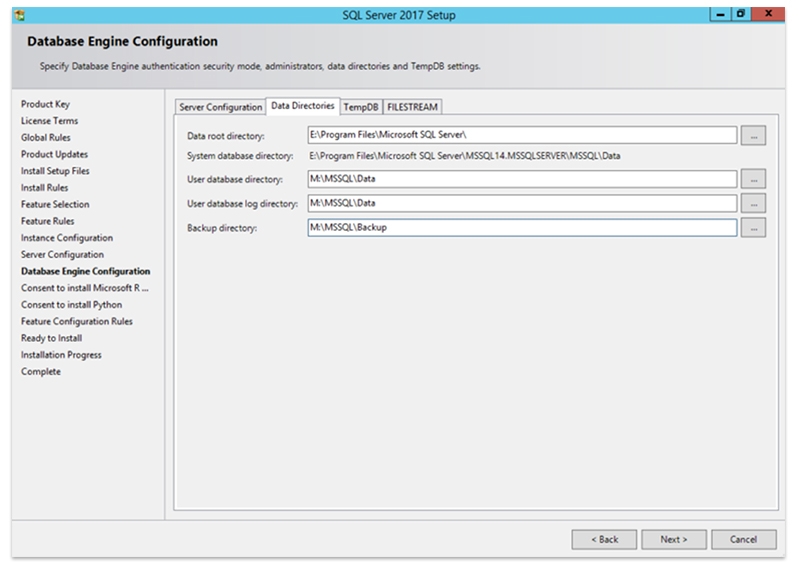
Step 10: Add location to save data in the data directories option.
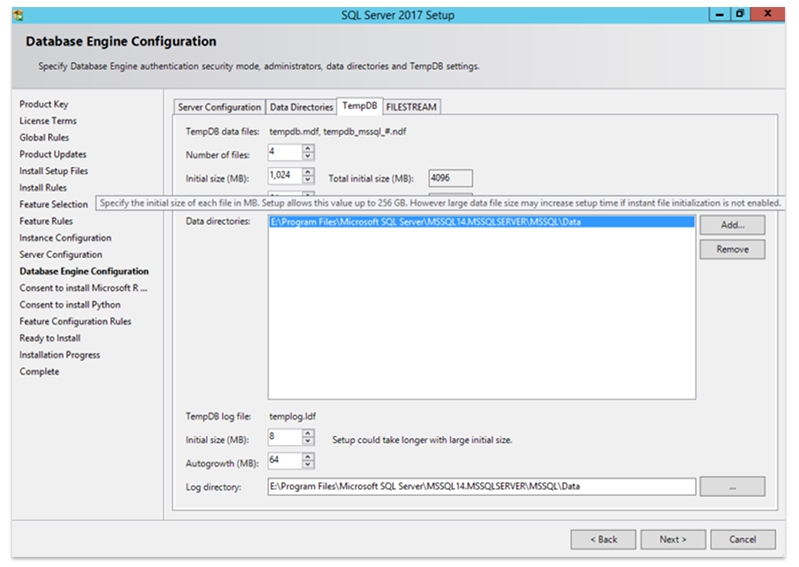
Step 11: Data and log files in TempDB can now be larger than a USB flash drive! However, there is a little warning about how you may have a delayed setup experience. Whatever you choose to call it, Filestream, and then click next.

Step 12: Now click on consent to install Python.

Step 13: It hangs here for a bit after you click Accept before Next is enabled, and you have to click that as well.

Step 14: All systems are up and running-click Install.
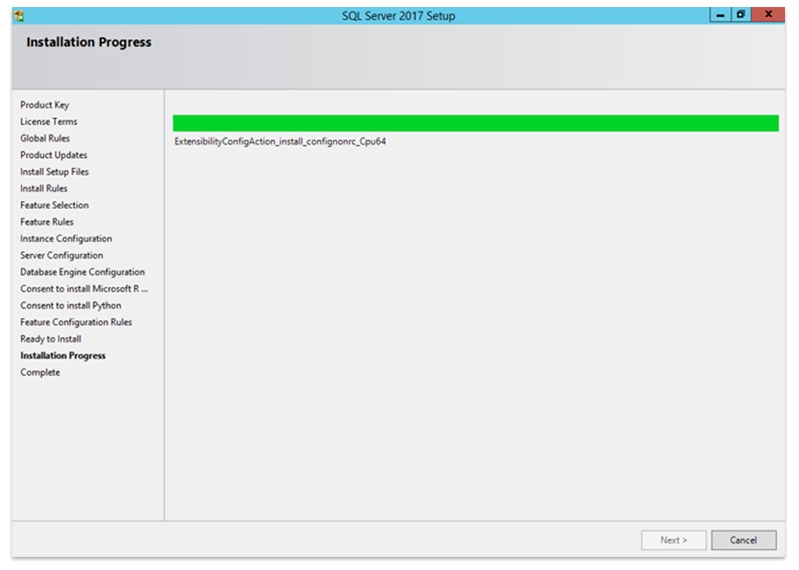
Step 15: For me, the “CPU action” (or lack thereof) has always been the most time-consuming component of the installation. More blazing CPU action (stuck here for minutes).

So this is how the 2017 installer was successfully installed and refreshed your system.
Microsoft SQL Server Native Client can be silently installed into your system by following the below steps:
After a few moments, you will find Microsoft SQL Server 2012 Native Client entries in the Installation Directory and Programs and Features in the Control Panel.
Following are scenarios where SQL Server Native Client can be very handy:
SQL Server Native Client can be used to create new applications or enhance existing applications that need to take advantage of features introduced in SQL Server 2005 (9. x), such as multiple active result sets (MARS), user-defined data types (UDT), query notifications, snapshot isolation, and XML data type support.
SQL Training For Administrators & Developers

The above writeup gives the reader details about SQL Server Native Client. It gives the reader an overview of its use, advantages, and disadvantages. It gives them an overview of when to use SQL Server Native Client. Finally, it gives them a detailed step-by-step guide on how to install SQL Server Native client. Hope this writeup is helpful to all who wants to know details about SQL Server Native client.

Database Files-Heart of SQL Server Database
 Apr 26, 2023
  6.1k
6.1k
Data Definition Language (DDL) Commands in SQL
May 15, 2023 5.4k
Different Types of DBAs and Their Roles
Aug 22, 2023 5.2k
What is Schema in SQL With Example: All You Need to Know
May 24, 2023 4.8k
Gen AI

Agentic AI

AI in Automation Testing

Cyber Security

Data Science

QA

Salesforce Service Cloud

AWS
Download Syllabus
Get Complete Course Syllabus
Enroll For Demo Class
It will take less than a minute
Tutorials
Interviews
You must be logged in to post a comment